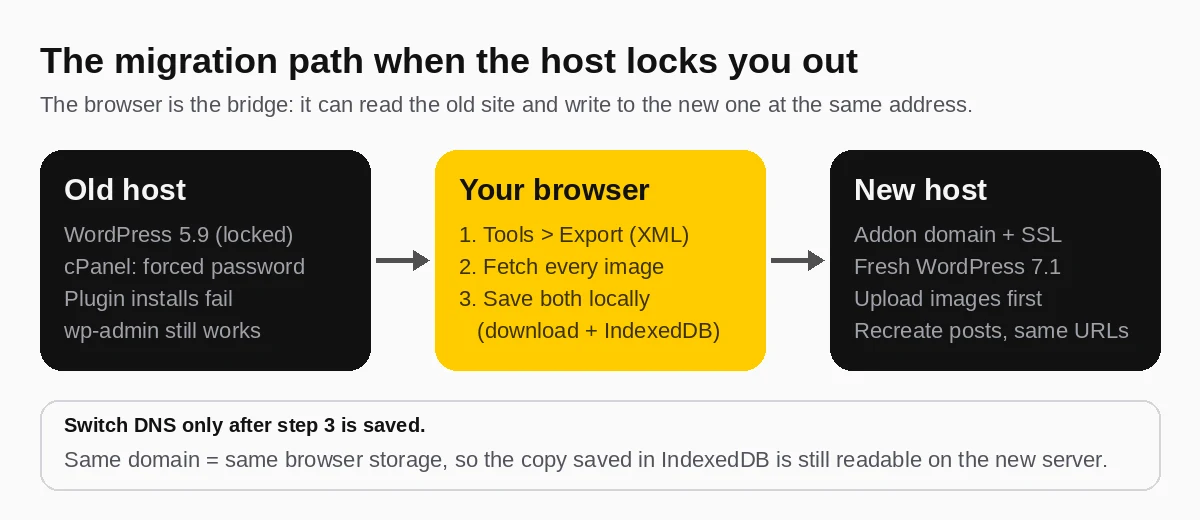
Short answer: if your host has locked you out of cPanel but you can still log in to wp-admin, you can move the whole site yourself. Export the content from Tools → Export, use your browser to download every image the export points to, set up WordPress on the new host, upload the images first, then recreate the posts with the same slugs. Switch DNS only after the backup is saved. I did exactly this for danialtv.com in November 2026; below is the full process, the script I used, and the three things that went wrong.
Tested on: old site WordPress 5.9.19 (PHP 8.1, LiteSpeed), new site WordPress 7.1.4 (PHP 8.3), Chrome. Site size: 3 posts, 7 pages, 12 images, 1,641 spam comments.
The situation: everything was broken except wp-admin
DanialTV is my old English blog. When I opened its dashboard again after a few years, this is what I found:
- WordPress 5.9.19, while the current version was 7.1.4. The dashboard said “An automated WordPress update has failed to complete.”
- 1,641 comments waiting for moderation, all of them spam (casino ads, crypto “wallet alerts”, random strings).
- A premium SEO plugin from 2020 with an expired license, so no security updates.
- Every plugin install failed with
Installation failed: Could not create directory.Site Health still claimed all folders were writable. - cPanel greeted me with “An administrator has requested you change your password”. After changing it, I landed on the same screen again. The host had forced a password reset and the loop would not clear.
So the usual tools were gone: no backup plugin (can’t install plugins), no cPanel backup, no File Manager, no phpMyAdmin. The only thing that still worked was the WordPress admin itself. That turned out to be enough.
Before you start: what this method does and doesn’t move
| Moves | Doesn’t move (redo by hand) |
|---|---|
| Posts, pages, drafts, dates, slugs | Theme files and theme settings |
| Categories, tags, menus (in the XML) | Plugin settings (cache, SEO plugin options) |
| Approved comments | Users’ passwords (re-create admin accounts) |
| Images and other uploads (with the script below) | Widgets and Customizer options |
| Post meta, including SEO titles and descriptions | Anything stored only in custom database tables |
For a small blog that is almost everything that matters. For a WooCommerce store or a membership site, it isn’t: orders and customer data live in tables the export doesn’t cover. In that case, open a ticket with your host and ask them for a full account backup instead.
Step 1: Export the content (2 minutes)
Go to Tools → Export, choose All content, and click Download Export File. You get one XML file (WordPress calls it WXR). Mine was 172 KB and held 36 items: 3 posts, 7 pages, 11 image records, 12 menu items and a few leftovers from the old theme.
Spam comments are not exported, so clean up first. Moving 1,641 comments to Spam took about two minutes with a short script; I’ll cover that in a separate post.
Step 2: Download every image with one script
The XML file only contains links to your images, not the images themselves. Normally the WordPress Importer downloads them from the old site during import. That fails here, because after you switch DNS the old URLs point to the new server, where the files don’t exist yet.
So download them now. Stay logged in, open any wp-admin page on the old site, press F12, open the Console tab and paste this:
// Run in the browser console while logged in to the OLD site's wp-admin.
// 1) Downloads the full export file. 2) Downloads every attached image.
const wxr = await (await fetch('/wp-admin/export.php?download=true&content=all')).text();
const save = (blob, name) => {
  const a = Object.assign(document.createElement('a'), { href: URL.createObjectURL(blob), download: name });
  a.click();
};
save(new Blob([wxr], { type: 'application/xml' }), 'site-export.xml');

const urls = [...new Set([...wxr.matchAll(/<wp:attachment_url><!\[CDATA\[(.*?)\]\]><\/wp:attachment_url>/g)].map(m => m[1]))];
console.log(urls.length + ' files to download');
for (const url of urls) {
  try {
    const res = await fetch(url);
    if (!res.ok) { console.warn('Skipped (' + res.status + '):', url); continue; }
    save(await res.blob(), url.split('/').slice(-3).join('_')); // keeps year_month_name
    await new Promise(r => setTimeout(r, 500));
  } catch (e) { console.warn('Failed:', url, e); }
}
Chrome will ask once whether the site may download multiple files; allow it. The script names files like 2020_10_Original-Logo.png, so you can still tell which month folder each one came from. I tested the export part on WordPress 5.9 and 7.1 and it works on both.
What went wrong for me: the old host was so slow that some requests timed out after 15–20 seconds, and 3 of 15 files failed on the first pass. Running the loop again for the missing files fixed it. Check the console for “Skipped” lines before you move on.
I also kept a second copy in the browser’s own storage (IndexedDB) for the danialtv.com address. Because the domain stays the same, that copy is still readable from the new server’s wp-admin after the DNS switch, which let me restore everything without touching files at all. It’s optional; the downloaded files are enough.
Step 3: Write down what the export can’t carry
- Permalink structure (Settings → Permalinks). Mine was
/%postname%/. Your new site must use the same one, or every URL changes. - SEO titles and meta descriptions of your important posts. They are in the XML as post meta, but copy the top ones into a note anyway. While you’re at it, run them through my pixel-length checker; when I did, one of my own titles turned out to be cut off in Google.
- Which pages are your homepage and posts page (Settings → Reading).
- Your logo, favicon and brand colors.
Step 4: Set up the new host before touching DNS
I added danialtv.com as an addon domain on another hosting account. In order:
- Add the domain (cPanel → Domains) with its own folder.
- Set the PHP version for that domain. I chose PHP 8.3.
- Install WordPress. I used WP Toolkit: WordPress 7.1.4, English, automatic core updates on, plugin security updates on.
- Change the nameservers (or the A record) at your registrar.
- Request the SSL certificate. AutoSSL issued a Let’s Encrypt certificate for both
danialtv.comandwwwonce DNS pointed to the new server.
To check whether DNS has switched, I didn’t trust my own computer’s cache. I asked Google’s public resolver directly: https://dns.google/resolve?name=yourdomain.com&type=A. When it shows the new server’s IP, most visitors see the new site too.
Step 5: Restore in the right order
The order matters, because posts point to images by URL and by ID:
- Set permalinks first to the same structure as before.
- Upload the images (Media → Add New). They land in the current month’s folder, for example
/2026/11/, so their URLs change. - Import the XML with the official WordPress Importer (Tools → Import → WordPress). Untick “Download and import file attachments”; the old URLs no longer work.
- Fix image URLs inside posts. Replace the old
/wp-content/uploads/2020/10/paths with the new ones, with a search-and-replace plugin or by editing each post on a small site. In block content, also update the image ID inwp-image-123and"id":123, or WordPress won’t generate responsive sizes. - Re-set featured images on each post. They point to attachment IDs, which are new.
On danialtv.com I did steps 3–5 with a small script against the REST API instead of the importer. It created each post with its original slug and date, swapped the image URLs and IDs, and set the featured image in one pass. For a site this size, the importer plus manual fixes is just as good.
Step 6: Check every old URL
These are the results from my checks after the move:
| Old URL | Result | What I did |
|---|---|---|
/delete-telegram-account/ | 200, same title and meta description | Nothing; this was the post with search traffic |
/about/, /contact/, /blog/ | 200 | Nothing |
/category/social-network/ | 404 | 301 redirect to the new Telegram category |
| Old theme demo page | 404 | Left as 404 on purpose; it was never real content |
/wp-content/uploads/2020/10/*.png | 404 | See below |
The image surprise: I wrote a redirect in the theme to send old image paths to the new files. It never ran. On this server, a request for a missing .png gets a 404 straight from the web server, before WordPress loads. If old image URLs matter to you (Google Images traffic, hotlinks), upload the files into the same year/month folders by FTP or File Manager, or add a rewrite rule in .htaccess on the new host. For my 11 images from 2020, I accepted the 404s.
Mistakes to avoid
- Switching DNS before the images are saved. After the switch, the old files are unreachable by domain name.
- Importing with “Download attachments” ticked after DNS has moved. The importer then asks the new server for files that don’t exist and silently skips them.
- Forgetting the author name. A fresh install shows “admin” as the author. Set a real display name and bio, and change the author slug so your login name isn’t public.
- Trusting “Site Health: writable”. My old host passed that check and still failed every install with “Could not create directory”. That error usually points to a full disk quota or a broken
wp-content/upgradefolder, which only the host can fix when cPanel is locked.
FAQ
Can I migrate WordPress without cPanel or FTP?
Yes, if you can log in to wp-admin. Tools → Export carries the content, and the browser script above carries the images. You lose theme and plugin settings, which you reconfigure on the new site.
Will I lose my Google rankings?
Not if the URLs, titles and content stay the same. Keep the permalink structure, restore SEO titles and descriptions, and 301-redirect anything whose address had to change. Then submit the sitemap in Search Console.
Why not just use a migration plugin?
Use one if you can. Migration plugins move everything, including settings. This method is for when plugin installs fail, the host has locked the control panel, or the site is too broken to run a plugin.